Minisforum N5 Pro NAS - iGPU Passthrough
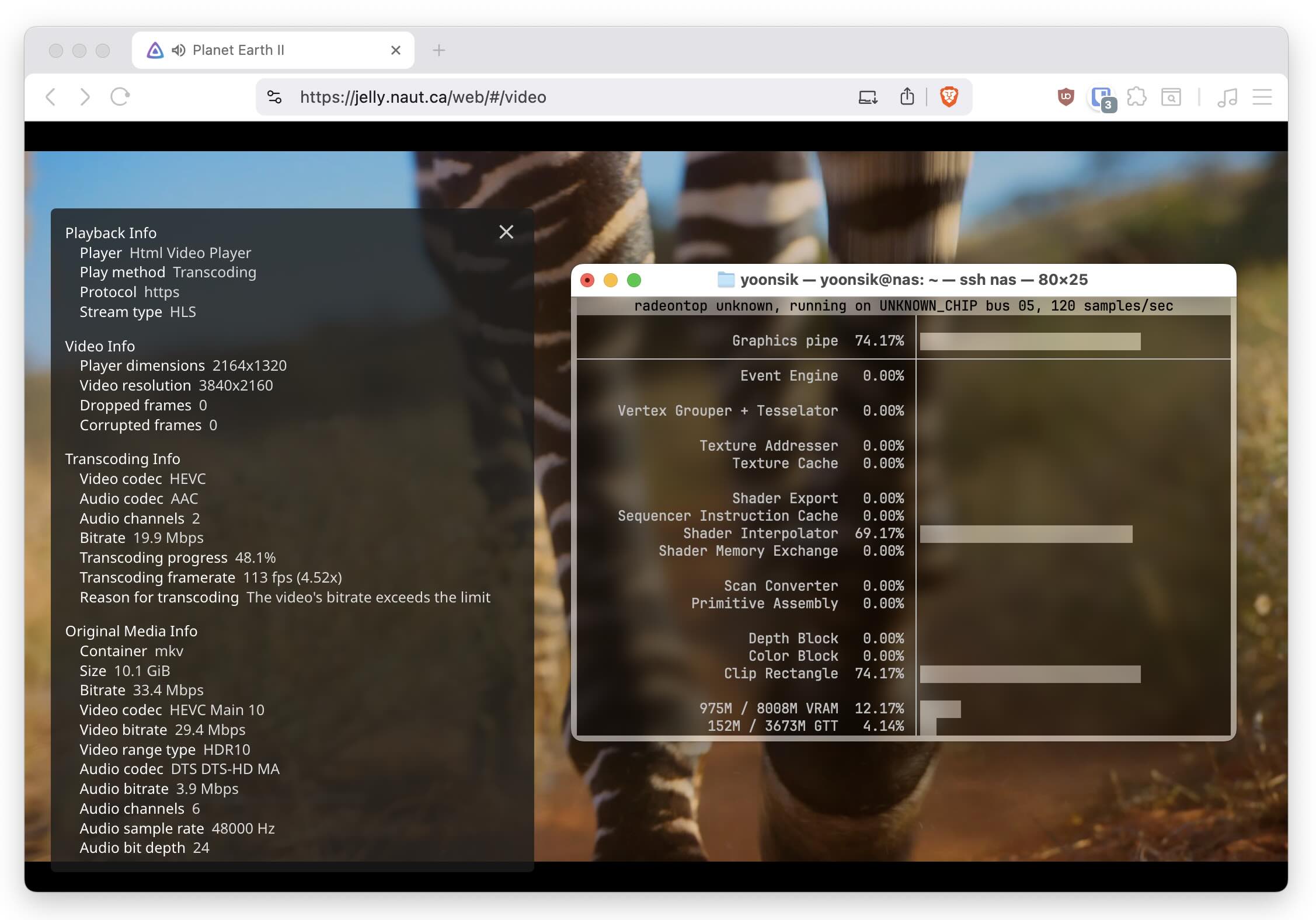
The Radeon 890M integrated GPU in the Minisforum N5 Pro is great for video transcoding in Jellyfin. Due to some conflicting information online, I decided to write a simple guide on passing through this iGPU to a virtual machine.
Step 1: Host - BIOS Settings
Hit the 'Delete' Key on boot, then navigate to the following: Advanced -> AMD CBS -> NBIO Common Options -> GFX Configuration. Then set iGPU Configuration to UMA_SPECIFIED and set UMA Frame buffer Size to 8G. Each 4K transcode will use around 1GB of VRAM, you can increase the size to 16G if needed. Leave ReBAR enabled and Hybrid Graphics enabled.
Step 2: Host - GRUB Configuration
Edit the GRUB bootloader configuration to enable IOMMU and prevent the kernel from loading graphics drivers at boot.
# nano /etc/default/grub
GRUB_CMDLINE_LINUX_DEFAULT="intel_iommu=on iommu=pt preempt=full pcie_acs_override=downstream,multifunction initcall_blacklist=sysfb_init video=simplefb:off video=vesafb:off video=efifb:off video=vesa:off disable_vga=1 modprobe.blacklist=amdgpu,radeon,nouveau,nvidia,nvidiafb,nvidia-gpu,snd_hda_intel,snd_hda_codec_hdmi,i915"
Then update the GRUB EFI partition.
sudo update-grub
Step 3: Host - Kernel Modules
Blacklist the amdgpu kernel module:
# nano /etc/modprobe.d/amdgpu.conf
blacklist amdgpu
Load the vfio kernel module for the GPU and audio device respectively:
# nano /etc/modprobe.d/vfio.conf
options vfio_pci ids=1002:150e disable_vga=1
options vfio_pci ids=1002:1640
Step 4: Guest - VM Definition
Download the ROM file and move to a suitable location. Use lspci to find the addresses of the GPU (Radeon 880M / 890M) and the Audio device (HD Audio Controller). Then insert the following block into your libvirt XML file, and update the address and the ROM file location.
  <hostdev mode="subsystem" type="pci" managed="yes">
    <source>
      <address domain="0x0000" bus="0xc9" slot="0x00" function="0x00"/>
    </source>
    <rom bar='on' file='/sand/vms/media/romv104.bin'/>
  </hostdev>
  <hostdev mode="subsystem" type="pci" managed="yes">
    <source>
      <address domain="0x0000" bus="0xc8" slot="0x00" function="0x01"/>
    </source>
  </hostdev>
Step 5: Guest - GPU Drivers
Once the guest has booted, install the AMD GPU firmware packages. For Debian, enable the non-free repository and install with apt install firmware-amd-graphics.
Step 6: Guest - OpenCL Support
OpenCL is used for hardware accelerated HDR Tonemapping in Jellyfin, i.e. to view HDR video on SDR devices. Follow the official guide to install the OpenCL runtime:
Instead of the full rocm package, install just rocm-opencl-runtime.
Conclusion
You should now have a virtual machine with an iGPU capable of transcoding H.265, H.264, AV1 and VP9 video, and support for OpenCL HDR tonemapping. For best results, in the Jellyfin Transcoding settings select Allow encoding in HEVC format as the H.265 encoder is significantly higher quality than the H.264 encoder in this generation.
Troubleshooting
The ROM file was extracted from BIOS v1.04 (2025/06/13). If you are having trouble, you may need to extract the ROM file yourself. On the host, make sure the AMD graphics firmware package is installed and the module is loaded (modprobe amdgpu). Then, dump the ROM file from the correct PCI address:
cat /sys/kernel/debug/dri/0000:c9:00.0/amdgpu_vbios > rom.bin